Friction, not willpower

Putting the phone down is not willpower.It is friction.

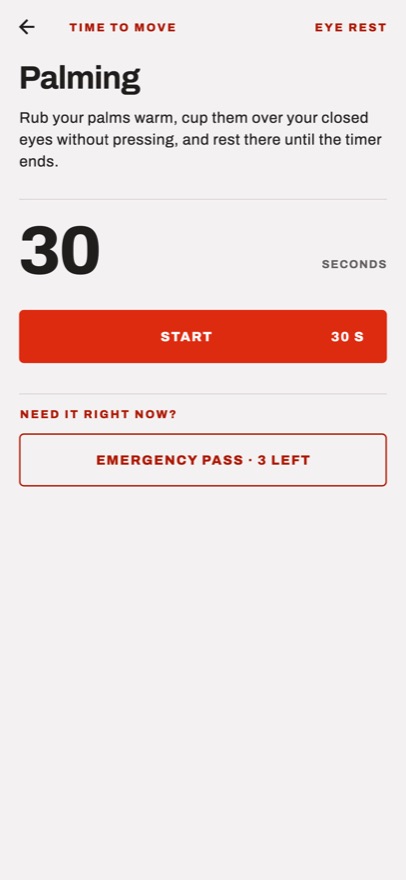
Time Recovery locks the apps that eat your day. When you try to open one, a 30-second exercise stands in the way. Do it, and the app opens.

Instead of fighting the urge, you make giving in a little more work — and the work is not wasted: posture, core, eyes, face.

No account · No ads · Your data stays on your phone

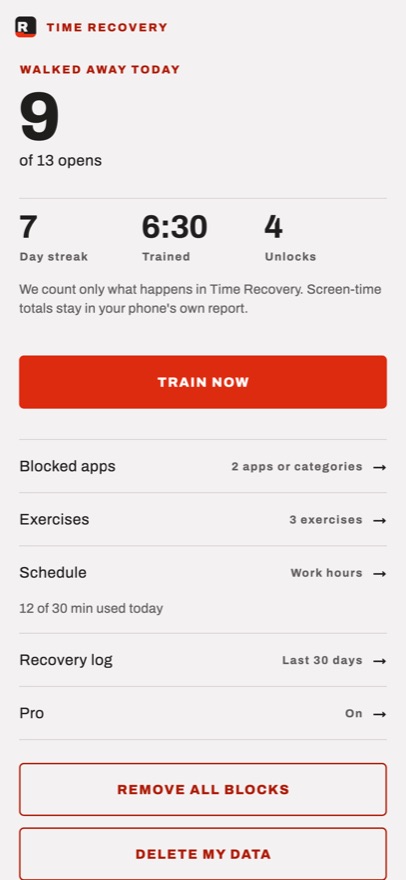
The Time Recovery home screen: daily streak, time trained and blocked apps

How it works

Three steps, then it leaves you alone

After setup it runs in the background. You do nothing; it waits for you.

  1. Pick the apps that take your time

    You choose from the apps already on your phone. With Pro you can block a whole category at once instead of one app at a time.

  2. A block screen meets you when you open one

    It sits on top of the app, and backing out does not help. The only way through is the exercise.

  3. 20–45 seconds, then the app opens

    Shoulder squeeze, plank, eye rest. When the timer runs out the lock lifts and you use the app as normal.

The list of blocked apps
Pick what to block
The exercise that unlocks the app
Unlock with an exercise
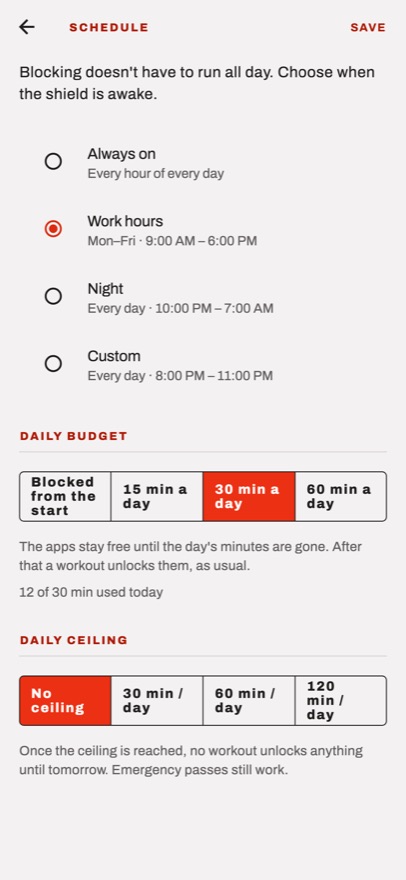
The hours the rule applies
Decide when it applies
There was a game I played during the day, and I kept catching myself opening social media without noticing. I ended up closing them just to avoid doing the exercise. My time on games and social media went from about three hours to one.
A tester

Features

What is in it

Everything you would expect from a blocker, plus the part that turns the price of getting past it into something useful.

16 exercises

Four packs

Posture, core, face yoga, eye rest. You decide which pack is in play.

Your own

Write what is missing

If what you want to do is not on the list, you write the step and set the time yourself.

Schedule

Hours that apply

Always on, or only at night, or only during work hours — the rule sleeps when you say it does.

Daily budget

Minutes a day

Give an app so many minutes a day; when they run out the block comes back.

The log

You can see it move

How often you hit the block and how many exercises you did. This is where you see whether the habit moved.

Emergency pass

When you really need it

Three times a day you can pass without training. The block is a threshold, not a wall.

Six languages

Including Turkish

English, Turkish, German, French, Spanish and Russian.

Both platforms

iPhone and Android

On iOS through Apple's Screen Time, on Android through its own blocking service.
Privacy first

What you block is your business

Most screen-time apps carry your usage to the cloud. Time Recovery does not. Which apps you block and how often you open them stays inside your phone.

  • No account, no sign-up. It never asks for an email, a phone number or a password.
  • No server, no analytics. That data does not reach me either.
  • No ads, no selling of data. Ever.
  • Phone, messages and maps can never be blocked.

On your phone

The apps you blocked, the exercises you chose, your schedule, your log and your daily counts.

On a server

Nothing. The app has no account, no database and makes no request.

Never blockable

Phone, messages and maps never enter the picker at all. A plank will not stand between you and a call for help.

Pricing

The free version is genuinely usable

Nothing is missing if you want to lock a single app. Pro lifts the limits.

Free

0

Enough to try the idea, with no time limit.

  • Lock one app
  • One exercise pack
  • Always-on schedule
  • Seven days of log history
  • Three emergency passes a day

Pro

7 days free

Then monthly, yearly or a one-off purchase.

  • Unlimited apps, whole categories
  • All four exercise packs
  • Exercises you write yourself
  • Night, work hours and windows you set
  • A daily minute budget
  • Thirty days of log history

Prices differ by country; your store shows the current one. Subscriptions are billed by the App Store or Google Play and renew until cancelled. I never see your card details.

FAQ

Questions people ask

Could I not just delete the app to get past the block?

You could. Time Recovery is not trying to trap you; it is trying to make one thoughtless movement deliberate for a second. Deleting it is a decision, which is not the same as drifting into a feed.

What happens in an emergency?

Phone, messages and maps can never be blocked — they do not even enter the picker. On top of that you get three passes a day that skip the exercise.

Can you see which apps I use?

No. The app has no server. The apps you block and your counts sit in your phone's own storage and are sent nowhere.

Where is the Android version?

In closed testing. Google Play wants 12 testers for 14 days before I can release it to everyone. Joining takes a few minutes and you can leave whenever you like.

Why does it ask for Screen Time on iPhone?

The blocking is done by the operating system itself, and Apple does not allow that without Screen Time (Family Controls) authorisation. The permission does not even show me which apps you picked — Apple hands over opaque tokens. Note that iPhone only grants it on a phone that has a passcode.

How do I cancel a subscription?

From the store you bought it in: on iPhone, Settings › Apple Account › Subscriptions; on Android, Play Store › Subscriptions. Deleting the app does not cancel it.

Start with one app today

Pick the single app that takes the most from you. The free version covers that, and a week later the log will tell you whether anything actually changed.